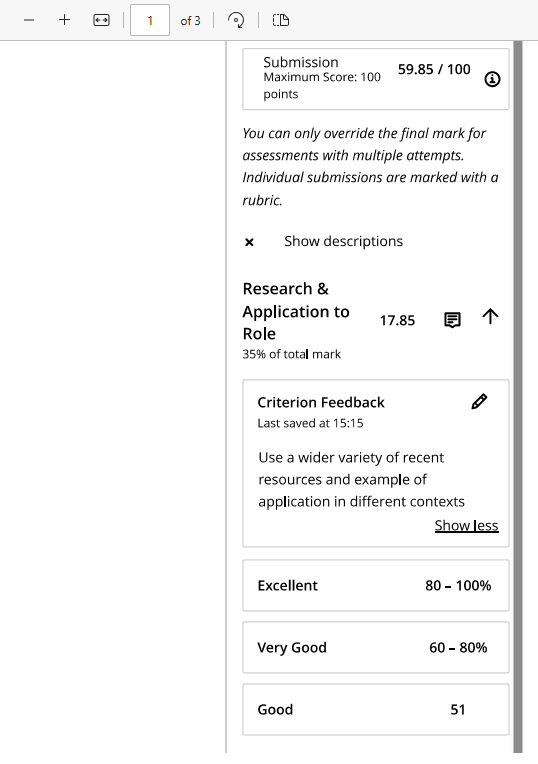
Weblearn assignment submissions can be bulk downloaded from the assignment’s submission tab but some feedback options might need to be downloaded per student.
Content for Digital Packs
A submission sample download for a Digital Pack should include
- Weblearn Gradebook for marks and overall feedback
- All files submitted for the marked attempt
If the submission includes links to artefacts, or any feedback that has been added using a Rubric, annotations or audio, the following needs to be downloaded individually for each student submission:
- Files which include annotated feedback
- Rubrics and rubric feedback
- Audio feedback transcript
- Any linked artifact which a student has added to their submission e.g a Panopto Video or OneDrive file link
Download submission files
If annotated versions of files submitted to an assessment are part of the digital pack, a bulk download of files is not required.
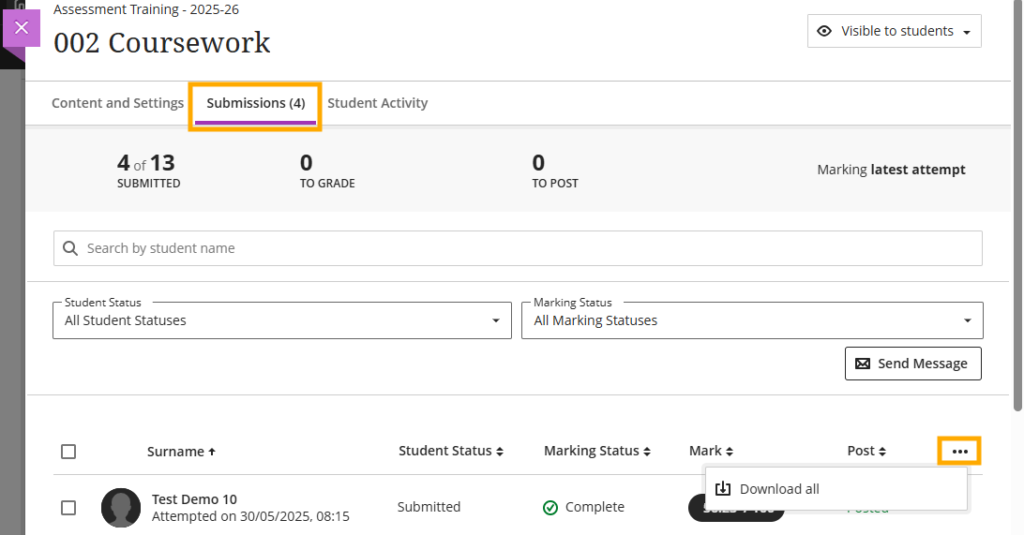
- Go to the ‘Submissions’ tab of the Weblearn Assignment
Don’t select students on the Submissions screen, the selection won’t show on the ‘Download Assessment Files’ screen.
- Click on the 3 dots and select ‘Download all’
- Select the submissions that need to be included in the sample and click on ‘Create Zip file’
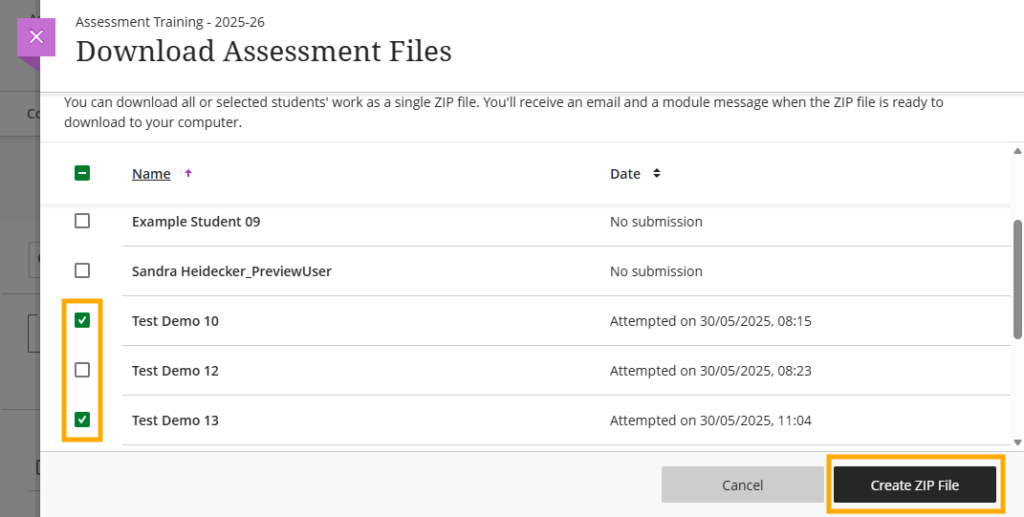
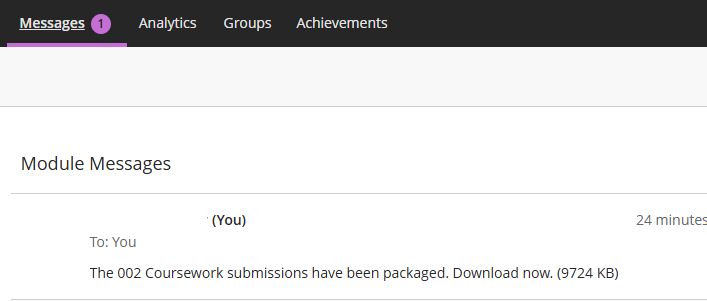
Follow the onscreen instructions. You will be sent an email and a module message with the download link for the created zip file.
- Click on the message to download the ZIP file
Note: you might receive an error message if the selected files are too large to create or download aa a .zip file. Select 10 or less submissions at a time to reduce the download size.
- Extract the files from the .zip file and upload the required files to the SharePoint site for the module.
Multiple files
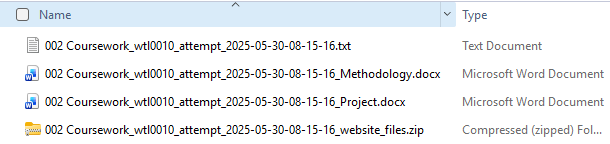
If the assessment includes more than one submission file, the download will include all files included in each submission. The file name includes the student username and files can be grouped by ordering them by name.
A summary of each submission attempt is included as a Text Document (.txt) named using the assessment name, the username and data+time of the submission, e.g.
002 Coursework_wtl0010_attempt_2025-05-30-08-15-16.txt
Multiple attempts
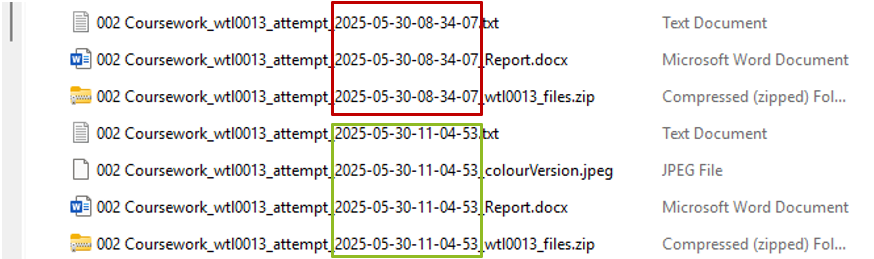
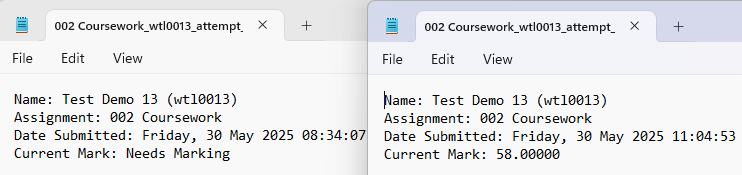
If a student has made multiple submission attempts, all attempts will be included in the download. The Digital Pack should only contain the marked attempt, which can be identified by checking the summary document per attempt included in the download.
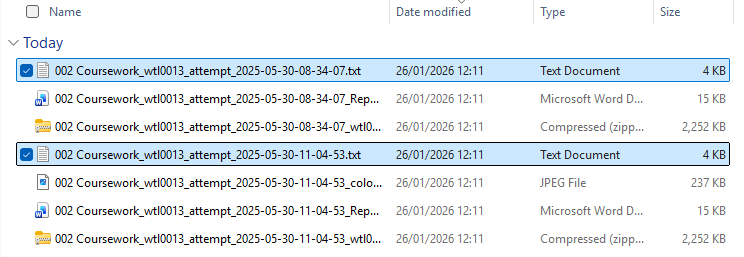
Assignments are usually set to mark the last attempt and close for submission after the due date. If that is the case and no attempts were manually excluded, choose the attempt with the latest date in the folder to add to SharePoint.
Note: ensure that unmarked attempts are not included
Alternatively, check the Current Mark field in the summary .txt document. The marked attempt will contain a value for the mark.
Download Gradebook for Marks and Overall feedback
The Gradebook download will include the overall feedback as well as marks for all students who have submitted. Marks are not included in submission file downloads so it is essential to download the gradebook for Weblearn Assignments.
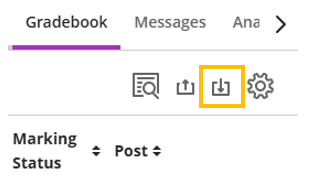
- Go to the Gradebook ‘Markable items’ tab and click on the download icon
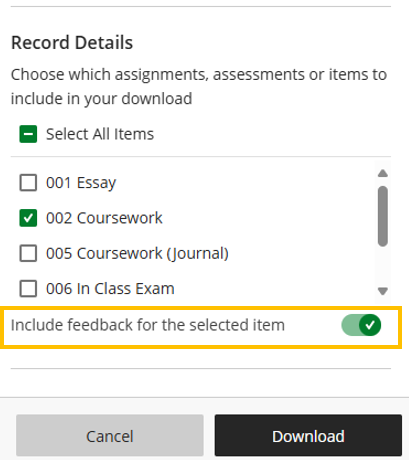
- Select the assignment and toggle the ‘Include feedback for the selected items’ toggle
- Click on Download and save the file to the module’s SharePoint folder
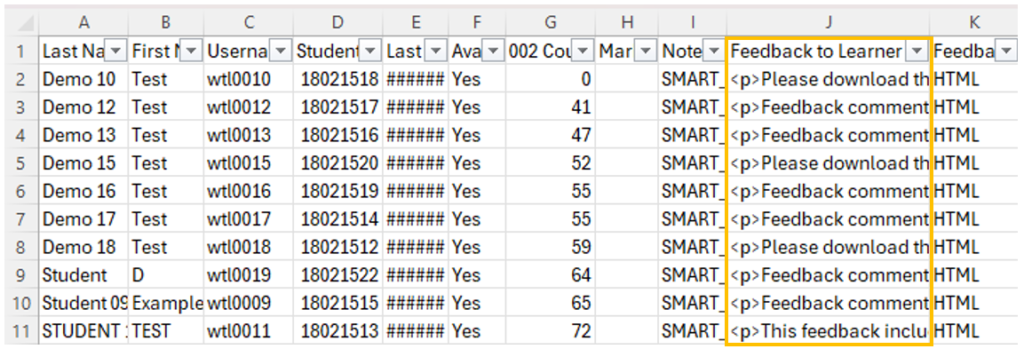
The downloaded file includes Student IDs, marks as they appear on Weblearn and text feedback.
Download annotated feedback (if used)
Annotated feedback needs to be downloaded per student for all files that were annotated.
If all submitted files are downloaded as annotated files, there is no need to bulk download submission files. If submissions contain a mix of annotated and non-annotated files, bulk download all files to include the full submission and the annotated files to show the feedback.
- Open the student submission in the marking view
- Select the file for which the annotation will be downloaded
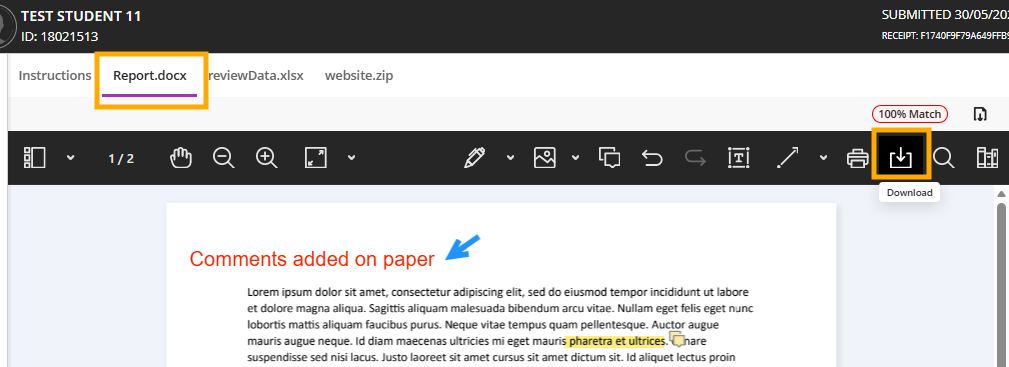
- Click on the download icon in the annotation bar
- Save the file with a name that included the Student ID or Username so it can be linked to the student details in the gradebook download.
Download rubric feedback (if used)
If an online rubric was used for marking, both the online rubric used and a copy of each student’s rubric feedback should be included in the Digital Pack.
Download online rubric
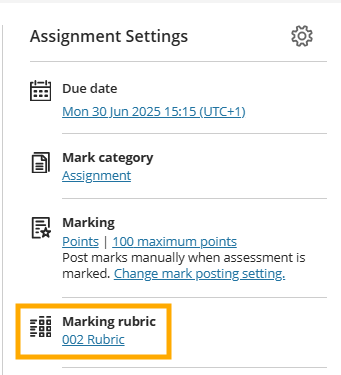
If you don’t have a spreadsheet version of the online rubric, you can access and copy the rubric content from the assessment settings.
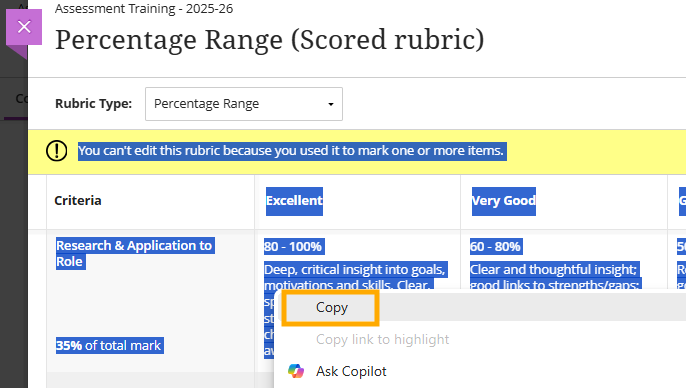
- Open the rubric and select the content.
This works best by putting your cursor on the text just above the rubric and then selecting all rubric content. Using the Ctrl+A (Windows) or Command(⌘)-A keyboard shortcut will select a large number of additional rows that would need to be deleted from the spreadsheet.
- Copy the highlighted content and paste it into a spreadsheet.
- Save the file and add it to the assessment’s Digital Pack
Download rubric feedback per student
Go to the student submission in the marking view.
Option 1: Save as spreadsheet
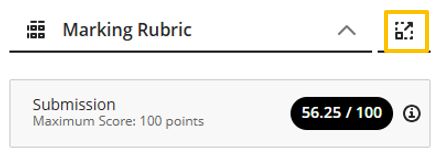
- Click on the icon next to the Rubric Header to open the student feedback in the rubric
- Expand personalised criteria feedback if used. Click on each criteria feedback button that appear in purple to include all feedback.
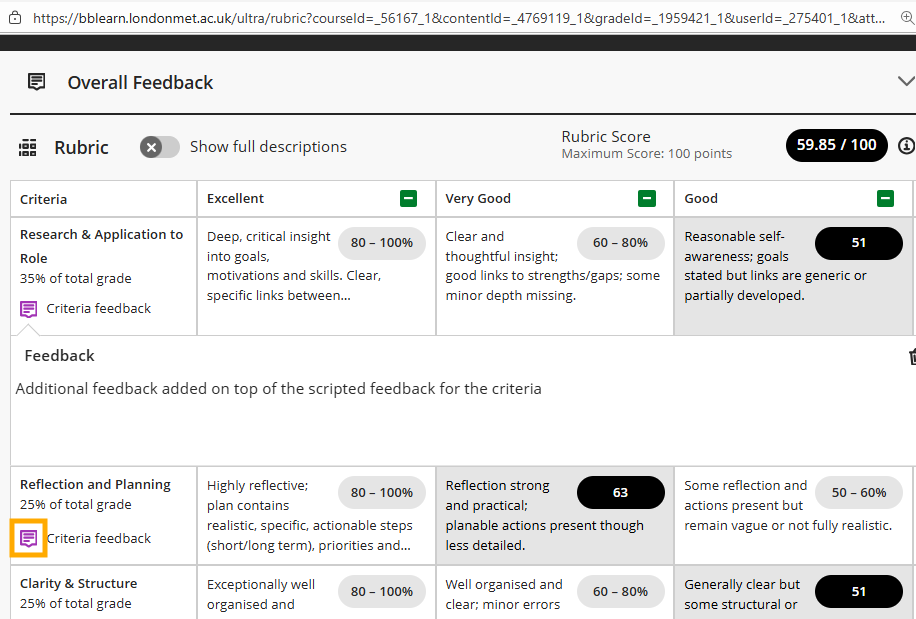
- Select the content shown on the screen and paste it into a spreadsheet
The spreadsheet will show the selected scales in grey with the exact value assigned to the submission appearing in white writing. Add borders to the cells in the spreadsheet if you want to make it more readable.
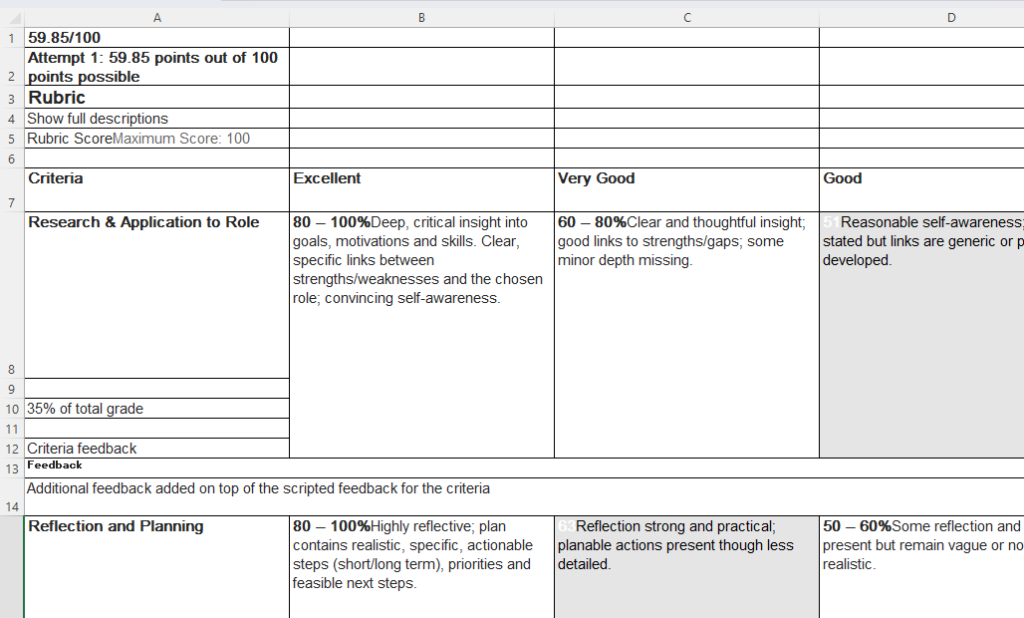
- Save the spreadsheet with the Student ID included in the name add it to the assessment’s Digital Pack
Option 2: Download using ‘Print to PDF’
‘Print to PDF’ works as long the entire page has loaded in the browser and all content that should be printed shows on the page.
- Enable ‘Show descriptions’. They are available in the copy of the online rubric that should be included in the Digital Pack
- Expand all criteria to clearly show scores and feedback. Click on the downward arrow next to each criteria to expand it

Click on ‘Show more’ if it shows for any of the personalised Criterion Feedback (if used)
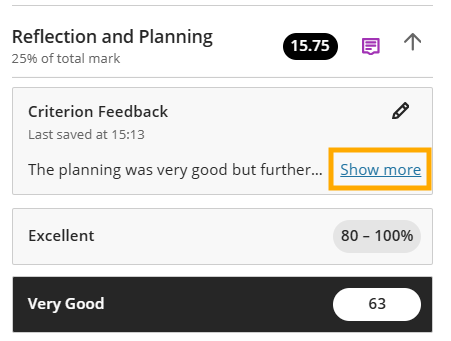
- Scroll all the the way to the bottom of the page
- Use the ‘Print’ option of the browser. Right click on the page or the 3 dots in the top right hand corner of the browser to and select ‘Print’ from the menu that opens.
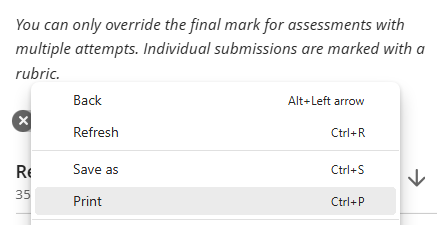
- On the next screen, choose the ‘Print to PDF’ option
- Save the file with the Student ID in the file name and add it to the assessment’s Digital Pack
The PDF will show all selected criteria and expanded feedback.