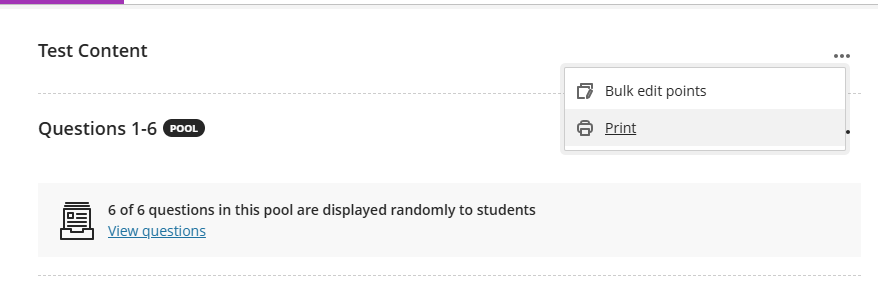
Online tests need to be invigilated in-class to be used for summative assessment.
For External Examiners to evaluate the test, provide a print out of test questions. MCQ tests are not marked by the instructor, so the questions themselves should be evaluated for correctness and fairness.
Content for Test submission downloads
Pack for Standard Test
Standard tests do not use question pools, all questions are directly added to the test. The digital pack for standard tests should include:
- Print out of the test
- Test results for student responses
- Gradebook for overall marks
Additional:
- Marking criteria and assessment information as published to students on Weblearn
Pack for Tests including Question Pools
Tests can be randomised or include pool questions. The test result download will include the question and student answer in the order that they appear on the test.
- Print out of a ‘hidden’ test containing all pool questions
- Test results for student responses
- Gradebook for overall marks
Additional:
- Marking criteria and assessment information as published to students on Weblearn
Print Test
- Open the Test and select the ‘Content and Settings’ tab
- Click on the three dots to the right of the ‘Test Content’ header
- Select ‘Print’
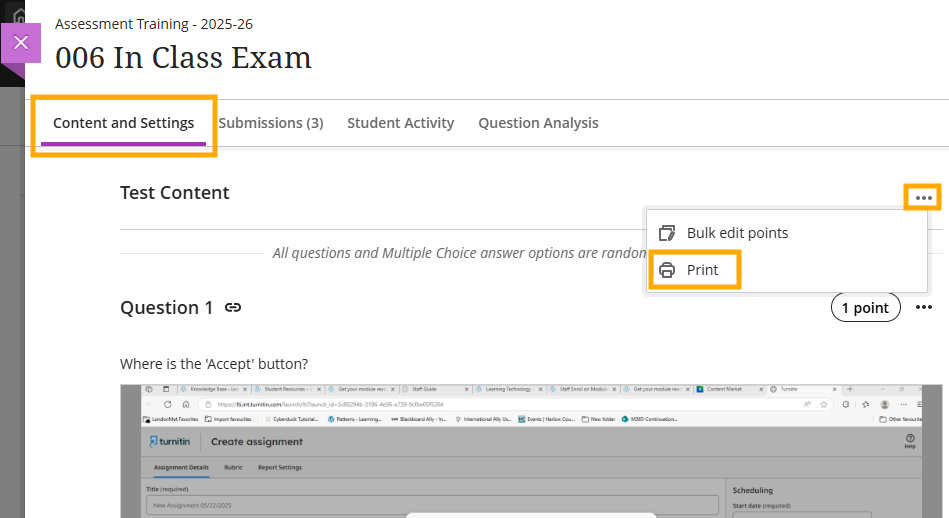
- Save the file and add it to the Digital Pack
Download Test results
- Go to the Gradebook and open the ‘Markable Items’ tab
- Click on the three dots of the Test for which you want to download results (student questions and answers)
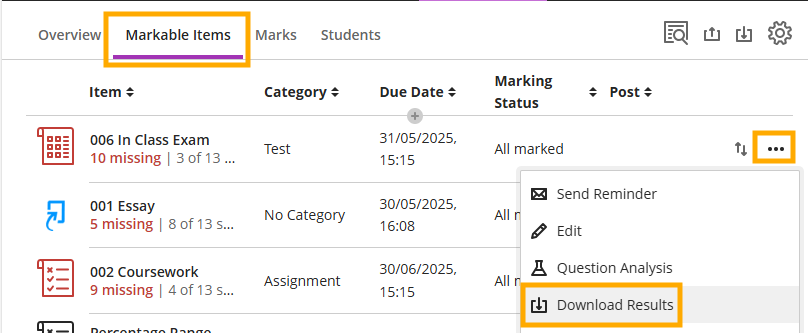
- Save the file and add it to the Digital Pack
Download Gradebook
The Gradebook download will include the overall feedback as well as marks for all students who have submitted. Marks are not included in submission file downloads so it is essential to download the gradebook for Weblearn Assignments.
- Go to the Gradebook ‘Markable items’ tab and click on the download icon
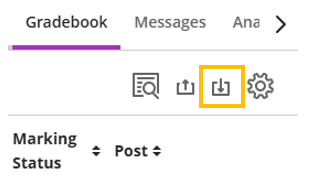
- Select the test
If the test contains overall feedback, toggle the feedback button to include the it. This is rarely used for MCQ type test.
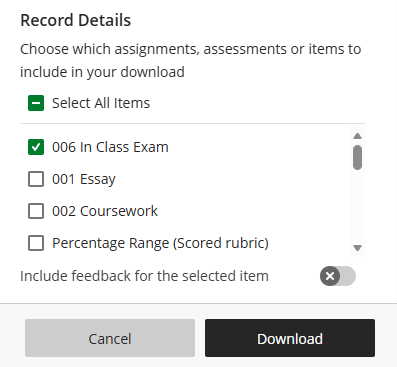
- Click on Download and save the file to the modules SharePoint folder
The downloaded file includes Student IDs, marks as they appear on Weblearn and text feedback if included.
Print Test with Pool Questions
If pool(s) have been used, printing the Test will include a random selections of the number of pool questions specified for the Test.
If the full pool is used (questions are displayed to students), the printed test will include all pool questions in a random order.
If a sub pool (e.g. 2 out of 4 questions) is included in the pool, the printed test will include a random selection of questions and the full question pool needs to be printed to provide all possible questions.
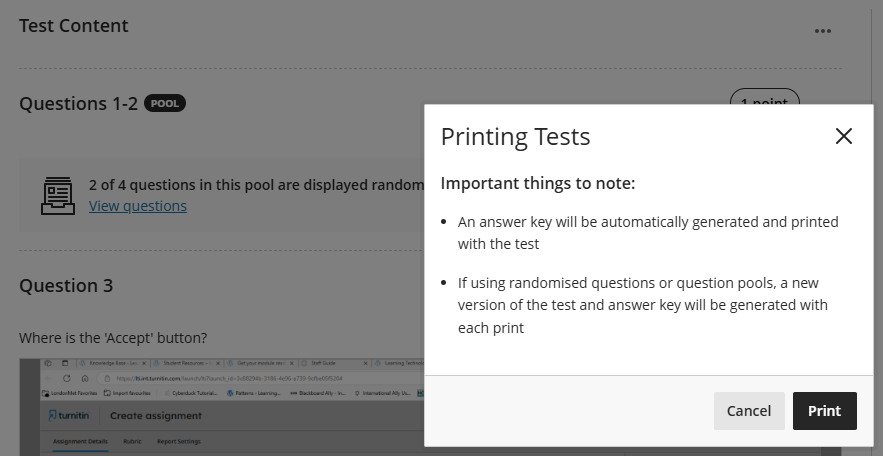
Print options for Pool Questions
Select the Print choice that applies to the Test based on the questions used.
| Questions used in Test | Print choices |
|---|---|
| No pool questions included | Print test |
| Fill Pool included in test (all questions of the pool are displayed to students, e.g. 6 out of 6) | Print test |
| Sub Pool included in test (only some of the available pool questions are displayed to students, e.g. 3 out of 6) | Print Pool questions |
| Test includes standard questions + Sub Pool(s) | Print test + Print pool questions |
Print Pool Questions
There is currently no options to print questions directly from a pool. All standard and pool questions used for the test must be added to a separate, hidden test which can then be printed.
- Create a Test and make sure it remains hidden from student view
- Click on the plus (+) button and select ‘Add question pool’
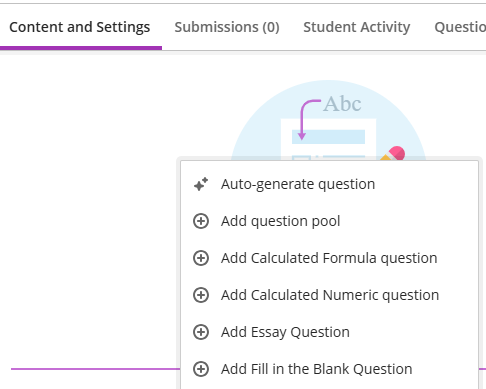
- Select all questions of the pool(s) that were used and click on the ‘Add questions’ button on the screen
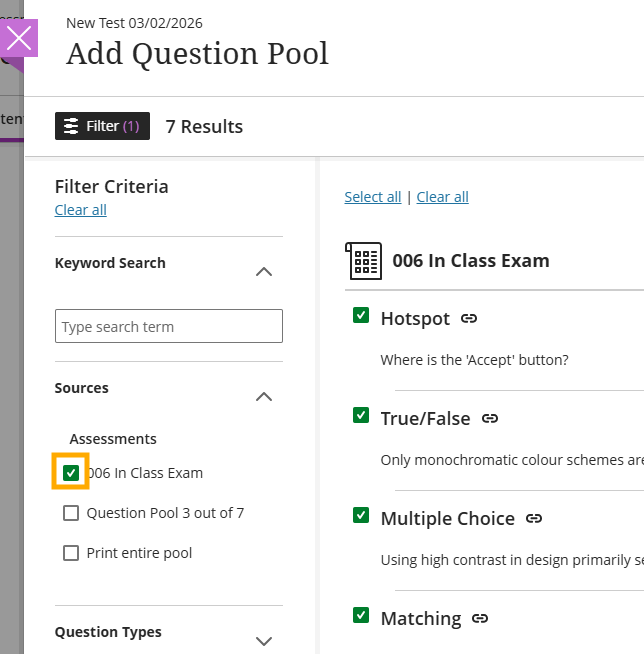
- Leave the default number of questions to display, assign the points as used in the exam and click on ‘Save’
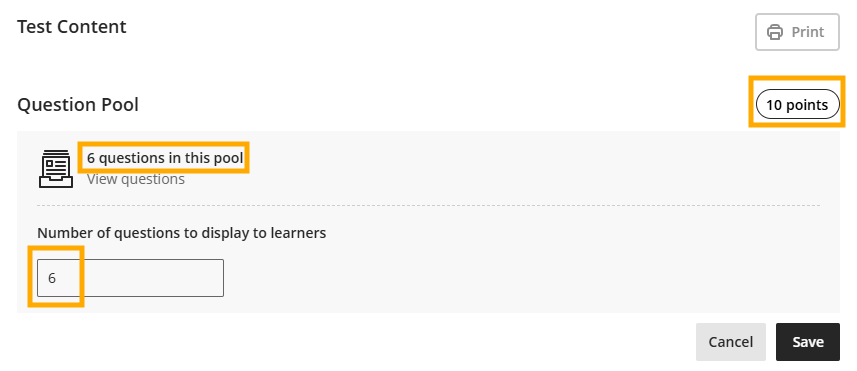
- Select print and save the PDF to the digital pack
When all questions are displayed to students, the printed document will include all questions included in the pool.