
Large files cannot be directly uploaded to Weblearn. If you have a large file which is over 200mb you can upload it to your OneDrive account and then share a file link in your Weblearn assignment.
- Login to onedrive.live.com
- Upload your file to OneDrive
- Set up your link sharing options
- Copy your file link
- Go to the Gradebook in your Weblearn module and open your online submission point
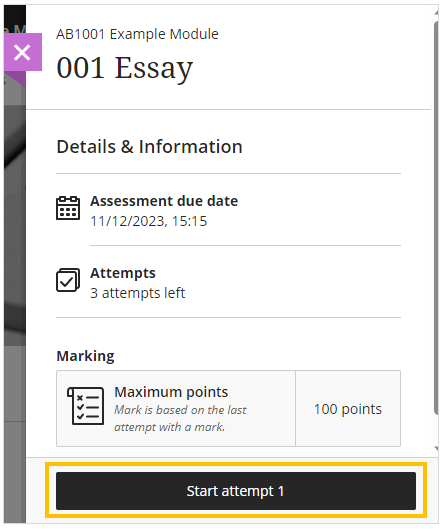
- Click on ‘Start Attempt’
- Paste your file link into the content editor
- Click ‘Submit’ to confirm your submission
Upload files to your OneDrive account
- Login to onedrive.live.com
- Select ‘Upload‘ > ‘Files‘

- Navigate to the location where you have saved your file on your computer
- Select the file and click on ‘Open‘

Once your file has uploaded it will appear in your My Files list.

Set File Sharing Options
You now need to set up your share options so the file be accessed by your lecturer.
- Select the file and the click on the ‘Share‘ icon

- On the ‘Share’ panel, click on the settings icon

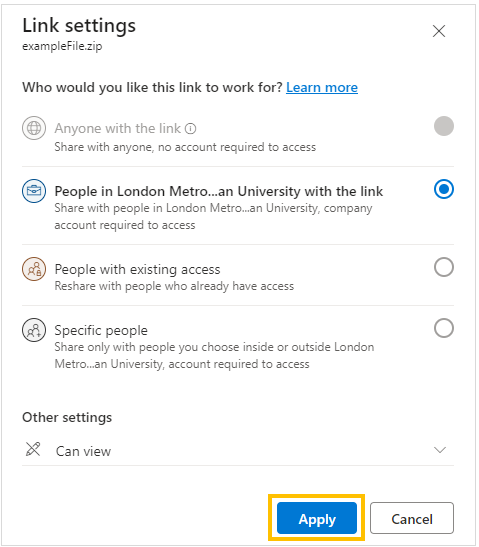
- Select ‘People in London Metro…an University‘
Note: do not share with ‘Specific people’ otherwise your external examiners will not be able to access your submission.

- Click ‘Apply‘ to save the link settings
The file link is now ready to be copied and then pasted into the online submission link on Weblearn.

Submit File Link in Weblearn
- Open the ‘Gradebook’ tab in your module and click on your assignment link

- On the assignment information panel, click on the ‘Start attempt’ button
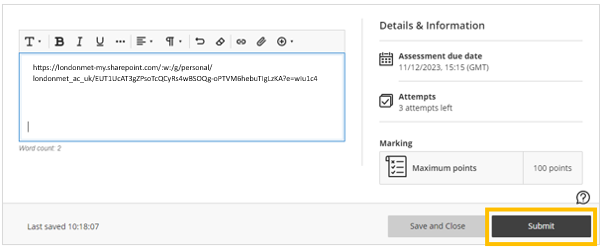
- One the submission page, click into the textbox to activate the content editor

- Copy and paste your weblink into the textbox

- Click on ‘Submit’
The confirm submission dialogue box will be displayed
- Click on ‘Submit’ again to confirm your submission

Once your assignment has been submitted, the ‘Your submission was successful!’ message will display at the top of the screen and you will be able to download your Digital Receipt.
