
Turnitin Assignments
Change the Due Date
To change the Due Date for a Turnitin Assignment:
- Click on the options menu next to the assignment name and then select Edit

- Under the Due Date section, select the date icon and change the date as required

- Click on ‘Submit‘ to save the new date
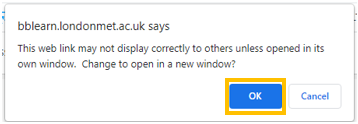
- When prompted, click ‘OK‘ in the browser dialogue to confirm Turnitin can open the assignment in a new window
Change Feedback Release Date
To access the assignment settings page, click directly onto the link to the assignment on the Gradebook page – it’s the same link that students use to submit.
Click on the ‘Settings’ icon at the top right of the screen

On the settings page you are able to update the ‘Feedback Release’ date and the optional settings.
Note: the anonymous marking setting cannot be edited after students have started submitted to the assignment.
Students cannot resubmit
The Similarity report setting must be set to ‘Generate reports immediately (students can resubmit until the due date)’ to allow students to have multiple submission attempts before the due date.
The setting can be updated on the assignment settings page.
To access the assignment settings page, click directly onto the link to the assignment on the Gradebook page – it’s the same link that students use to submit.
Click on the ‘Settings’ icon at the top right of the screen
Expand the ‘Option Settings’ area

Scroll down until you see the ‘Similarity Report’ section
Click on the dropdown menu and select ‘Generate reports immediately (students can resubmit until the due date)‘

Click on ‘Submit‘ to save the change
Student user guide: Make another submission attempt before the due date
Copy assignment(s) from previously created assignments

Turnitin have introduced a new ‘Copy Assignment’ feature. This feature does not work reliably and can create both broken assignments and assignments with incorrect settings.

Please avoid using the ‘Copy assignment(s) from previously created assignments’ feature.
If you have already used the feature, please check and amend the following:
- Check and update the assignment instructions
Click on the three dots for the assignment link and then select ‘Edit’

Update the description field and click on ‘Save’

Open the assignment link and then click on the ‘Settings’ icon at the top right of the screen
Expand the ‘Optional settings’ and check the settings have copied correctly, amend where required.
Turnitin Assignments: Optional Settings

- Delete any broken assignment links
If you have tried to copy multiple assignments, only the first assignment will be copied successfully. All additional assignments will be broken and cannot be fixed.
Broken assignment links can be identified by the ‘Approval required! – Hidden from students’ message which will appear underneath the assignment title
Delete any broken assignment links.