
A Weblearn assignment is used for submitting:
- File types that are not word processed: most file types are accepted
- Video files via Panopto: Panopto for Video
- Submitting more than one file at a time: you can upload multiple files to the same assignment link
- Large file submissions via OneDrive: OneDrive for Large Files
How to submit
View the instructional video: Submit Weblearn Assignment
Step by step instructions
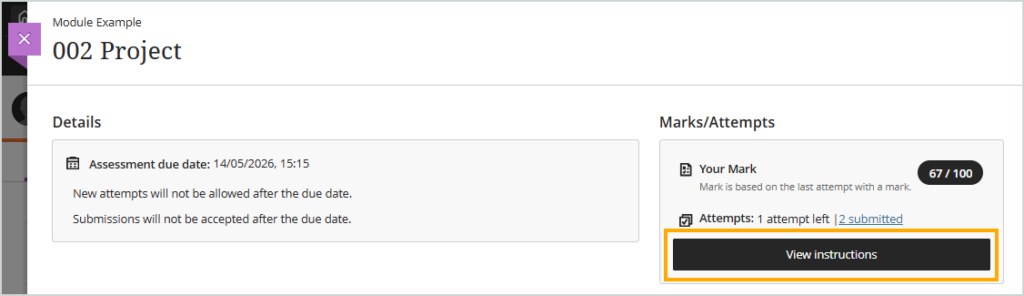
- Open the ‘Gradebook’ page in your module

- Click on the Assignment title to open the Assignment information panel
- Click on the ‘View instructions’ button
- One the submission page, click on the ‘Upload file’ option
Alternatively, if instructed by your lecturer use the Submission textbox to enter your submission
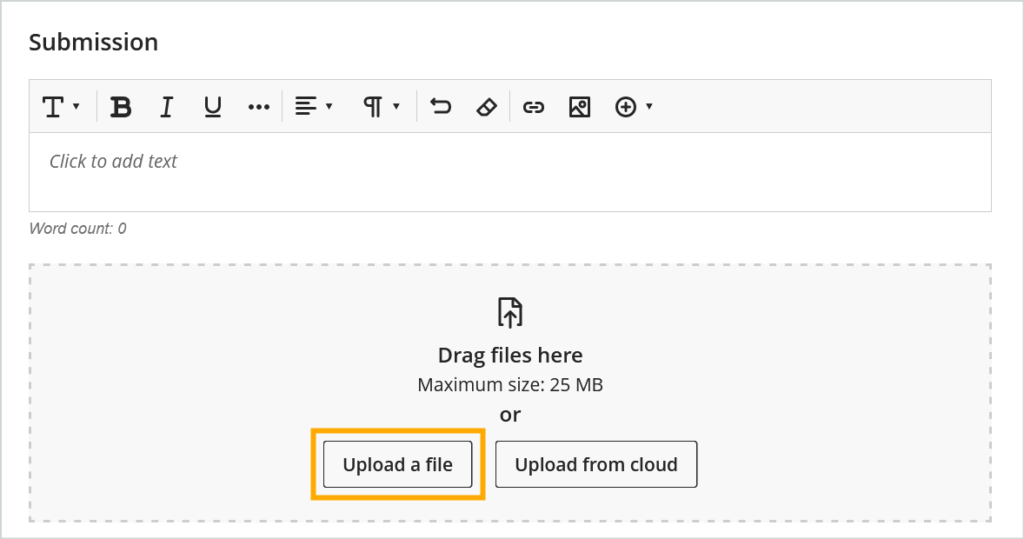
- Navigate to the location where you have saved your file(s) and select them
Note: if you are attaching more than one file, you are able to select and attach multiple files at the same time
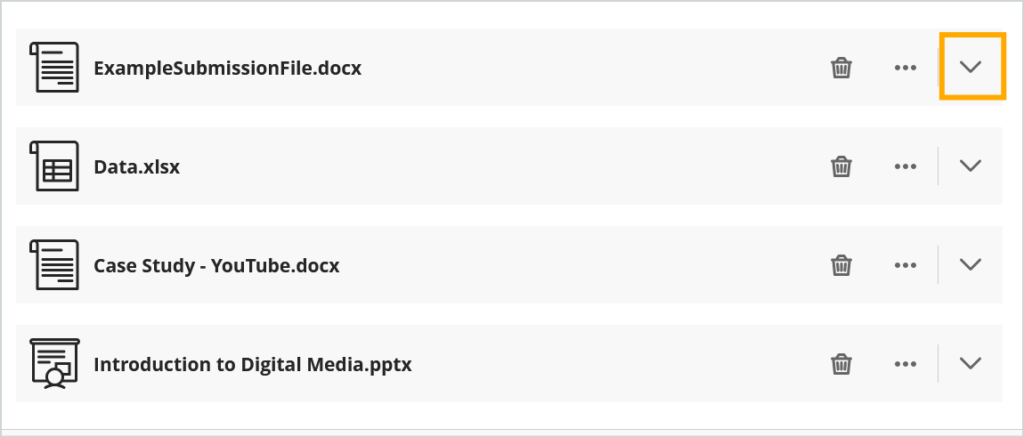
- Once your files have uploaded you will be able to view and check them by clicking on the chevron for each file
- Click on ‘Submit’
The confirm submission dialogue box will be displayed
- Click on ‘Submit’ again to confirm your submission

Once your assignment has been submitted, the ‘Your submission was successful!’ message will display at the top of the screen and you will be able to download your Digital Receipt.
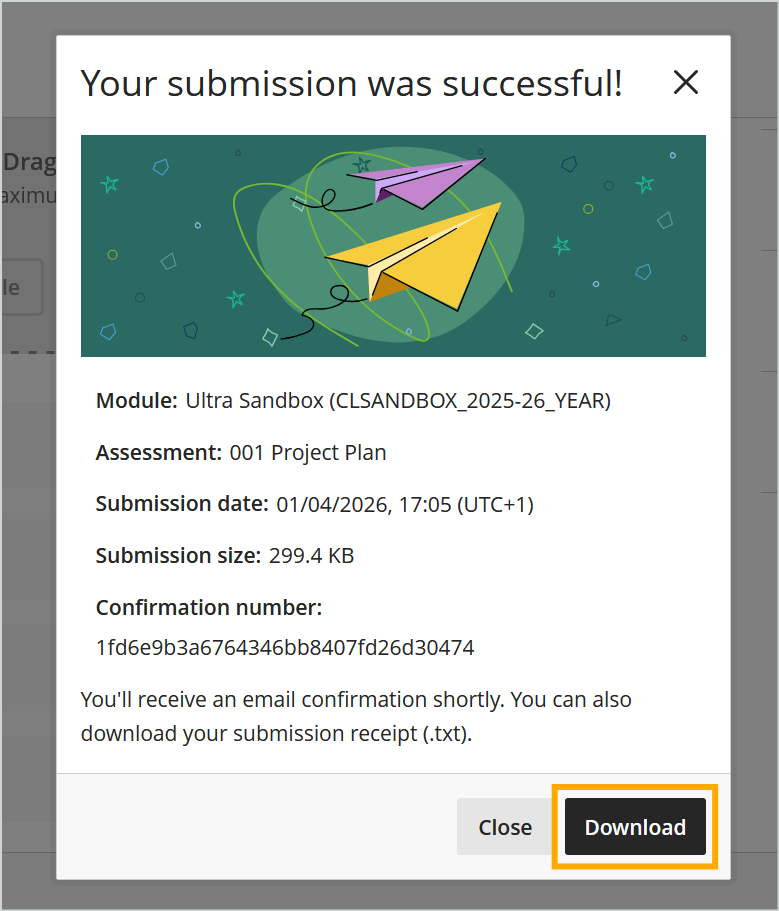
Once you have submitted your coursework, an email will be sent to your university email address as a confirmation that your submission has been received. The email will be sent to your university email account only.
Tip: Can’t see your confirmation email?
Sometimes email messages end up in the ‘Junk’ folder, especially if you recently received a lot of emails from Weblearn and haven’t opened them.
Upload Another Submission Attempt
If multiple submissions have been allowed on the online submission link you will be able to submit again before the due date by following the same submission process you followed for the first attempt.
Only the most recent submission attempt submitted before the due date will be marked by your lecturer.