
Turnitin is a web-based text matching tool, which is widely used in UK universities. It searches the current and archived internet, subscription services and papers submitted by other students to identify any similarities between text. Your lecturer will examine these similarities to check the originality of your work. This tool is integrated in Weblearn so that you can submit your work online.
How to submit
View the instructional video: How to submit to Turnitin
Step by step instructions
- Open the ‘Gradebook’ page in your module

- Click on the Assignment title to open the Assignment information panel
- Click on ‘Launch’
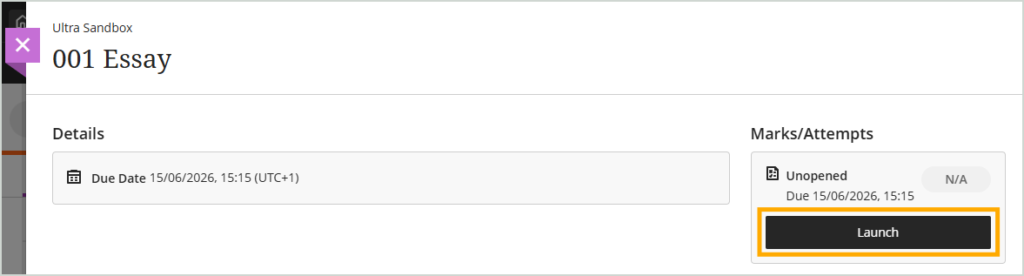
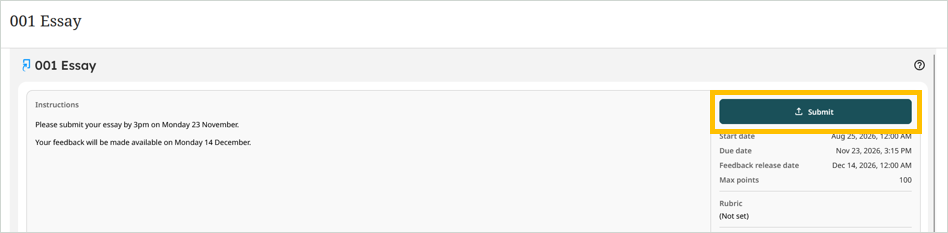
- On the Turnitin page, click on the ‘Submit’ button
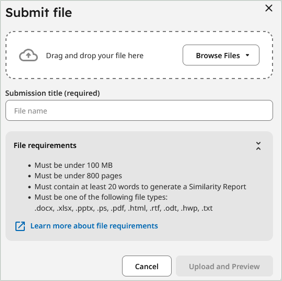
- On the Submit File panel, either drag and drop your submission file onto the submission panel, or use the ‘Browse files’ option to locate and attach your submission file on your computer.
- Once you have attached your file select ‘Upload and Preview’
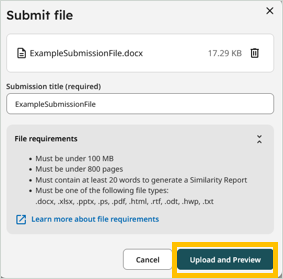
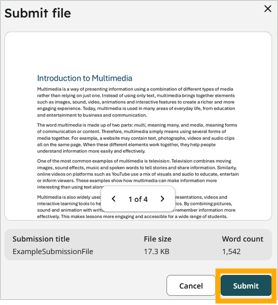
- Check your submission in the preview window, and then select ‘Submit’
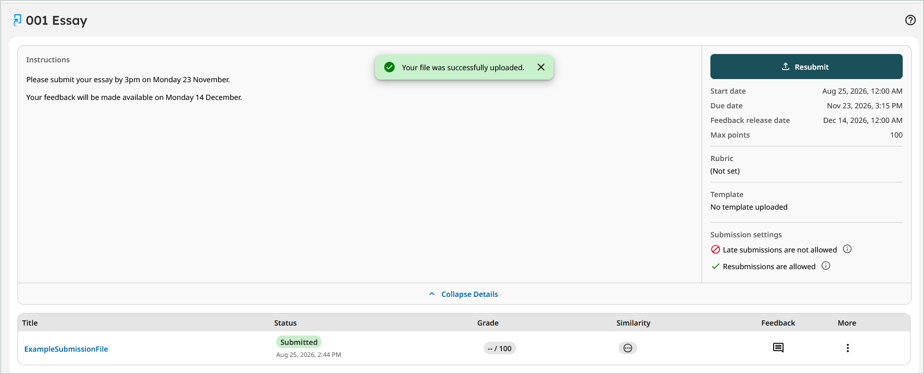
Once your assignment has been submitted, the Success message will display at the top of the screen and you will be able to view your submission on the Assignment Dashboard.
Submit another attempt before the due date
To upload another submission attempt before the due date:
- Return to the Gradebook area in your module and open the online submission link where you want to make another attempt
- Click on the ‘Resubmit’ button to open the Submit File panel
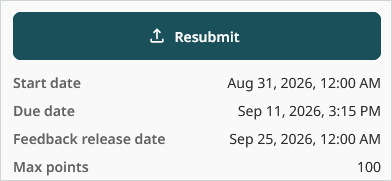
Note: if it is before the deadline and the button is inactive it means that multiple submissions have not been set on the assignment link and you will need to contact your lecturer.
- Follow the same submission process as before to make another submission attempt