
External assessor can’t edit my workbook
If you have shared your workbook with your external assessor, mentor or supervisor and they can view the workbook but can’t edit the assessor fields it means that the workbook has been shared ‘with people’ or ‘with the web’. The workbook must be shared ‘With an external assessor‘ for them to be able to edit it.
Workbooks that have been shared with an external assessor successfully will show an ‘ASSESSMENT’ notice underneath the workbook name on the external assessors ‘shared with you’ page.

If your workbook shows as ‘SHARED’ you will need to share the workbook again following the instructions on the Share with External Assessor page.
To check the shares on your workbook:
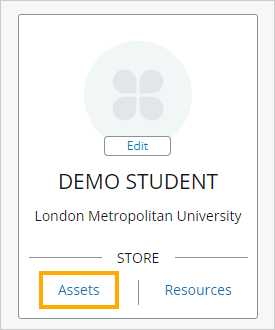
Open PebblePad from your Weblearn module and then click on the PebblePad Plus icon at the top of the screen

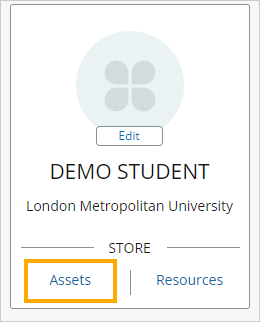
Click on ‘Assets’ to open your Asset Store
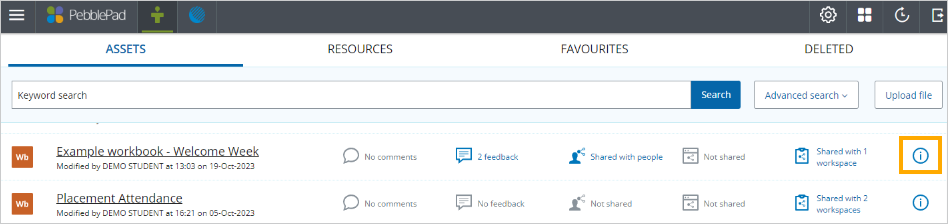
Locate your workbook in the list of assets and then click on the information icon
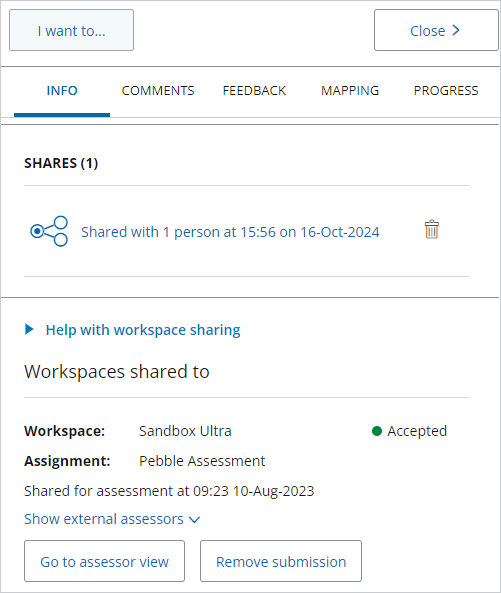
Scroll down the Info panel until you reach the ‘Shares’ section.
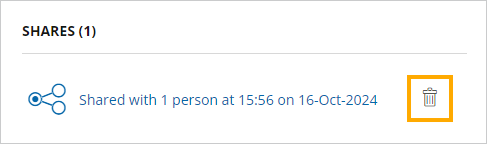
If you have shared with a person, click on the delete icon to remove the share – this is the share that is allowing your external assessor to view your workbook but they can’t edit it.
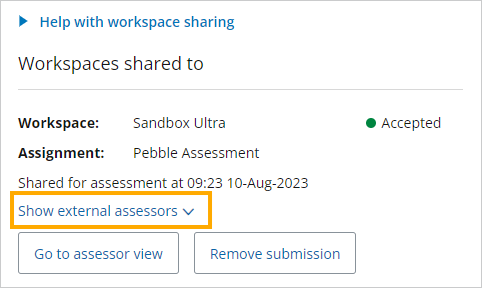
Once you have shared your workbook correctly you will see a ‘Show external assessors’ option underneath the ‘Workspaces shared to’ section.
The option to share With an external assessor is not appearing
The option to share ‘With an external assessor’ is only available for assets which have been shared with a workspace for assessment.
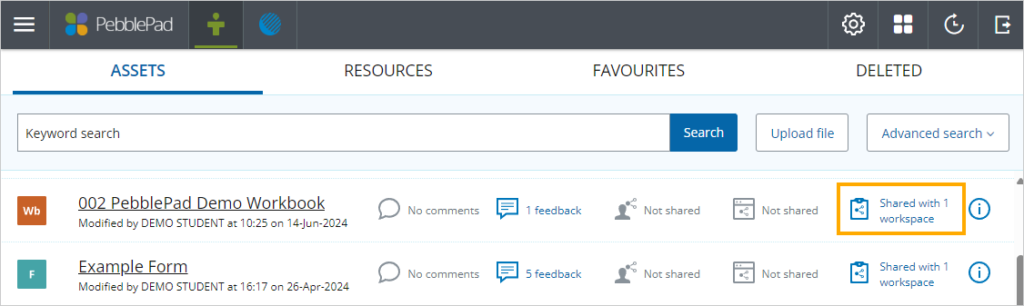
To check if your workbook has been shared for assessment, open your PebblePad account and then go to your ‘Asset store’
If your workbook, or other Asset type, has been shared with a workspace for assessment a ‘Shared with…’ message will be displayed.
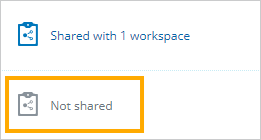
If the workbook has not been shared, a ‘Not shared’ message will be displayed.
If the workbook has not been shared, please follow the guidance on our help pages: Share Asset for Assessment
Recovered Workbook
Pebblepad will save a copy of your workbook if you temporarily lose access to the internet and it will appear as recovered in your Asset Store.
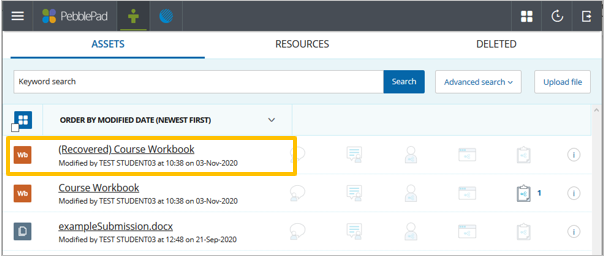
If you continue to work on the recovered version, your lecturer will not be able to see the changes because the copied version has not been shared for assessment.
You will need to compare both versions to identify which one has the most content. If the recovered version contains the most content you will need to request that your current submission is removed so you are able to submit your recovered version for assessment.
Note: if the submitted workbook contains feedback, or has been shared with an external assessor it will not be possible to replace the submitted version with the recovered workbook.
Share the recovered workbook for assessment
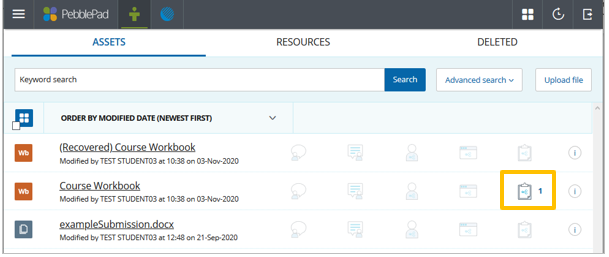
Once your submitted workbook has been removed, the clipboard icon will no longer be highlighted:
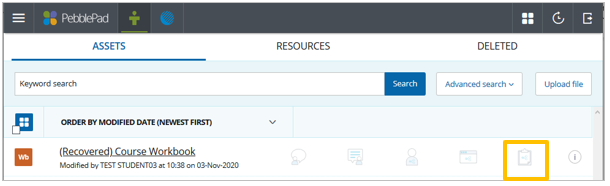
In your Assets Store, locate your recovered workbook an click on the greyed-out submission icon:
Select ‘I want to…’, then ‘Share’
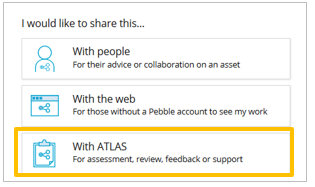
Click on ‘With ATLAS’, and then select the workspace with your course name.
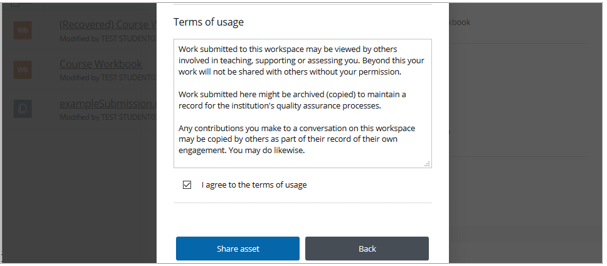
Agree to the terms of usage and the click ‘Share asset’
Once you have shared your workbook for assessment, please contact your tutor and ask them to check that they can see your filled in workbook.